When you complete all of the modules of a course, the system will calculate the average score of all the modules’ scores to generate the course score. You must receive a 70% or greater course score in order to receive a certificate of completion for a course. Note that some Broadcom assessments require an 80% or greater passing score and some courses do not have scoring. Courses without scoring will require that you have viewed each page within the course/modules before it is marked completed.
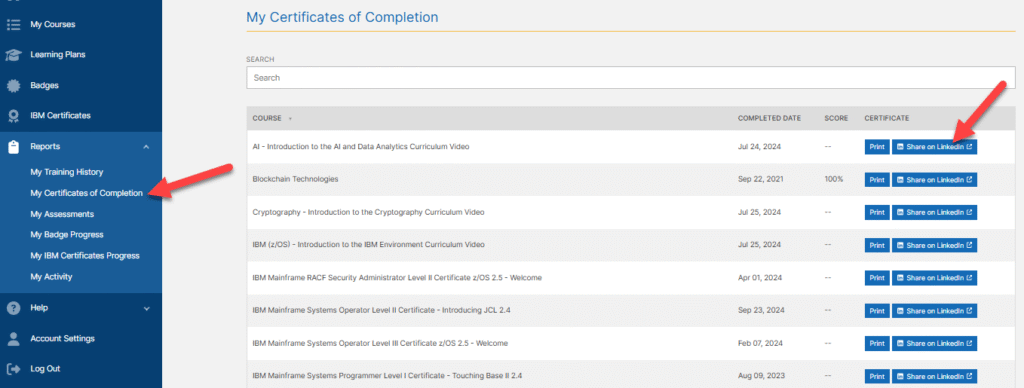
Once you have completed a course then you can print or save a PDF of the certificate of completion for that course via the reports feature within the MyInterskill LMS. Follow the instructions below.
- Login to the MyInterskill LMS.
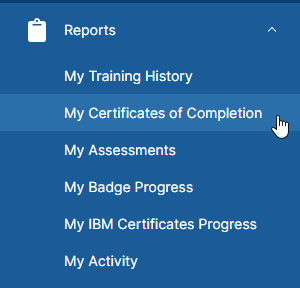
- Go to the Reports on the left navigation menu and select the “My Certificates of Completion” report.
- If you have completed a course, you will see them listed on the report and a link to print each certificate.
- If you wish to share your certificate on LinkedIn, you can do so using the button next to the course you’ve earned. It is recommended you download the certificate image and use it when sharing on LinkedIn.
- When you click on the Share on LinkedIn button, be sure you are already logged into your LinkedIn account.
- If you do not see the “Share on LinkedIn” button, this means your account has not turn this feature on yet or you have not consented to it. Check your account settings in MyInterskill or simply request assistance by submitting a support case to have it turned on.